Twitch Finally Embraces Vertical Streaming and 1440p
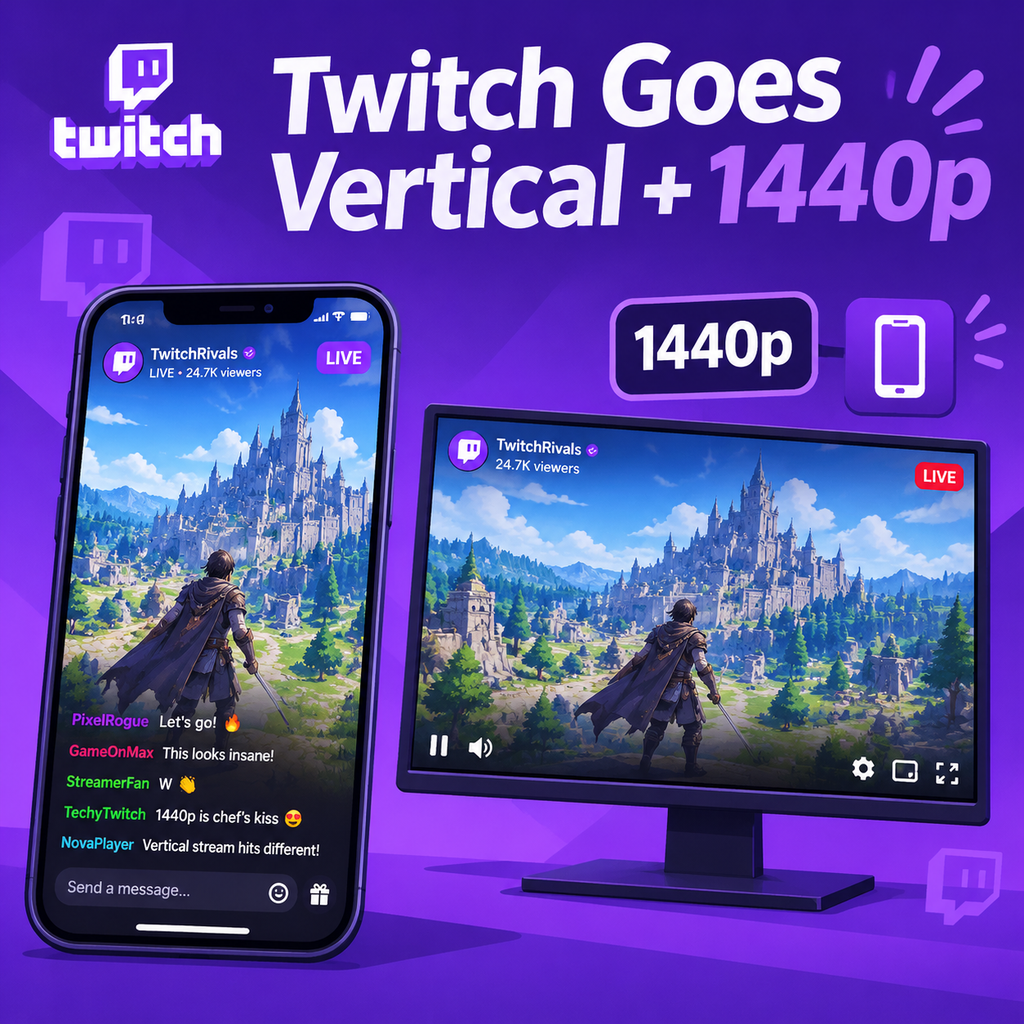
Twitch is stepping up its game—literally and figuratively. The platform is rolling out two major features: Dual Format streaming, which lets streamers broadcast in both horizontal and vertical formats simultaneously, and 2k (1440p) streaming, a significant leap from 1080p. This means mobile viewers can enjoy full-screen vertical streams without awkward letterboxing, while desktop viewers still get the classic widescreen experience. And for those craving sharper visuals, 1440p delivers richer detail and smoother performance. It's a clear move to meet audiences where they are—whether on a phone or a big screen.
How Dual Format Streaming Works
Dual Format streaming is now available to all streamers on Twitch. The magic happens through Enhanced Broadcasting, a technology that encodes multiple quality variants directly from your broadcasting software. You'll need to enable it in OBS Studio (version 32.0 or newer) by checking the "Enhanced Broadcasting" box under "Multitrack Streaming." Then, you can set up a vertical canvas—typically 1080x1920—and customize your vertical layout separately from your horizontal one. Viewers on mobile will automatically see the full-screen vertical view when holding their phone upright, and can switch to horizontal by rotating the device. Desktop and TV viewers will continue to see the standard horizontal broadcast. The best part? You can customize your vertical layout to remove the need for editing when sharing clips, giving you creative control over both formats.
2k Streaming: A Sharper Viewing Experience
For Partners and Affiliates, 2k (1440p) streaming is now on the menu. This upgrade offers a noticeable step up from 1080p, with richer detail, improved clarity, and better performance for gaming, art, or just chatting. To stream in 2k, you'll need Enhanced Broadcasting and a compatible setup: OBS Studio 32.0+, a display of 2560x1440 at 60fps, and sufficient upstream bandwidth (around 9 Mbps with added server-side transcode support). The bitrate bump—up to 9 Mbps for 1440p and 7.5 Mbps for 1080p—ensures streams look sharper and more consistent, even during fast-paced gameplay. Plus, 2k streams unlock access to 2k Clips and VODs for you and your viewers. Note that 2k streaming is limited to Partners and Affiliates, so if you're not there yet, it's another reason to work toward those milestones.


Enhanced Broadcasting: The Engine Behind the Upgrade
Enhanced Broadcasting is the unsung hero here. It supports multiple client-side encodes, similar to transcodes, and automatically configures your stream settings for optimal performance. This technology reduces strain on your system by utilizing your GPU to encode the highest-resolution horizontal and vertical streams, while server-side transcoding fills in lower resolutions. Partners and select Affiliates get added server-side transcode support, which means smoother performance and higher-quality experiences for viewers across all formats. You can check your Advanced Broadcast Settings in the Creator Dashboard to see if you have access. Even if you don't, Enhanced Broadcasting is required for both Dual Format and 2k, so it's worth enabling regardless.
What This Means for Streamers and Viewers
For streamers, these features open up new avenues for engagement. Vertical streaming meets the growing demand for mobile-first content, making it easier to capture audiences who prefer scrolling through short-form videos. It also simplifies clipping—no more awkward cropping or editing. For viewers, the benefits are clear: mobile users get a native, full-screen experience, while desktop users enjoy the classic layout. The 1440p option caters to those who crave high-fidelity visuals, whether they're watching a heated League of Legends match or a detailed art stream. Twitch is essentially bridging the gap between traditional broadcasting and the TikTok-ified world of vertical video.
Setting Up Your Stream for Dual Format and 2k
Ready to dive in? First, ensure you're using OBS Studio 32.0 or newer. In OBS, go to Settings > Video and set both canvas and output to at least 2560x1440 for 2k. Then, under Settings > Stream, check the "Enhanced Broadcasting" box. For Dual Format, enable Vertical Scenes and Vertical Sources from the Docks menu. The vertical canvas should be 1080x1920 (9:16). You can customize your vertical layout to your heart's content. Keep in mind that your horizontal stream will use your base canvas resolution, while the vertical stream's resolution is configured separately—typically 720x1280 or 1080x1920. Enhanced Broadcasting will handle the rest, automatically optimizing settings for both formats.
Potential Limitations to Keep in Mind
While these features are exciting, there are a few caveats. 2k streaming is limited to Partners and Affiliates, so newer streamers will have to wait. There are also regional limitations on 2k viewing, so streamers using both Dual Format and 2k should be mindful of their audience's location. Additionally, 2k viewing is not supported on mobile devices—the vertical stream maxes out at 1080p. Finally, while Dual Format is available to all streamers, added server-side transcode support is only for Partners and select Affiliates. Without it, your system may work harder, so check your eligibility. Despite these limitations, the rollout marks a significant step forward for Twitch, showing a commitment to evolving with viewer habits.
The addition of 1440p and vertical streaming isn't just a technical upgrade—it's a strategic shift. Twitch is acknowledging that the future of live content is multi-format and high-definition. By empowering streamers to reach viewers on any device with tailored experiences, Twitch is positioning itself as a versatile platform ready for the next generation of broadcasting. Whether you're a streamer looking to expand your reach or a viewer craving better quality, these changes are a win-win. So update your OBS, check your settings, and get ready to stream in style—both horizontally and vertically, in stunning 1440p.
 English
 Русский
 Turkish
 Português (Brasil)
 한국어
 العربية
 Español
 ไทย
 Tiếng Việt
 Français
 中文
 Deutsch
 Italiano
 日本語
 Polski
 Українська
 فارسی


