

 English
 Русский
 Turkish
 Português (Brasil)
 한국어
한국어 العربية
 Español
 ไทย
ไทย Tiếng Việt
 Français
 中文
中文 Deutsch
 Italiano
 日本語
日本語 Polski
 Українська
 فارسی
فارسی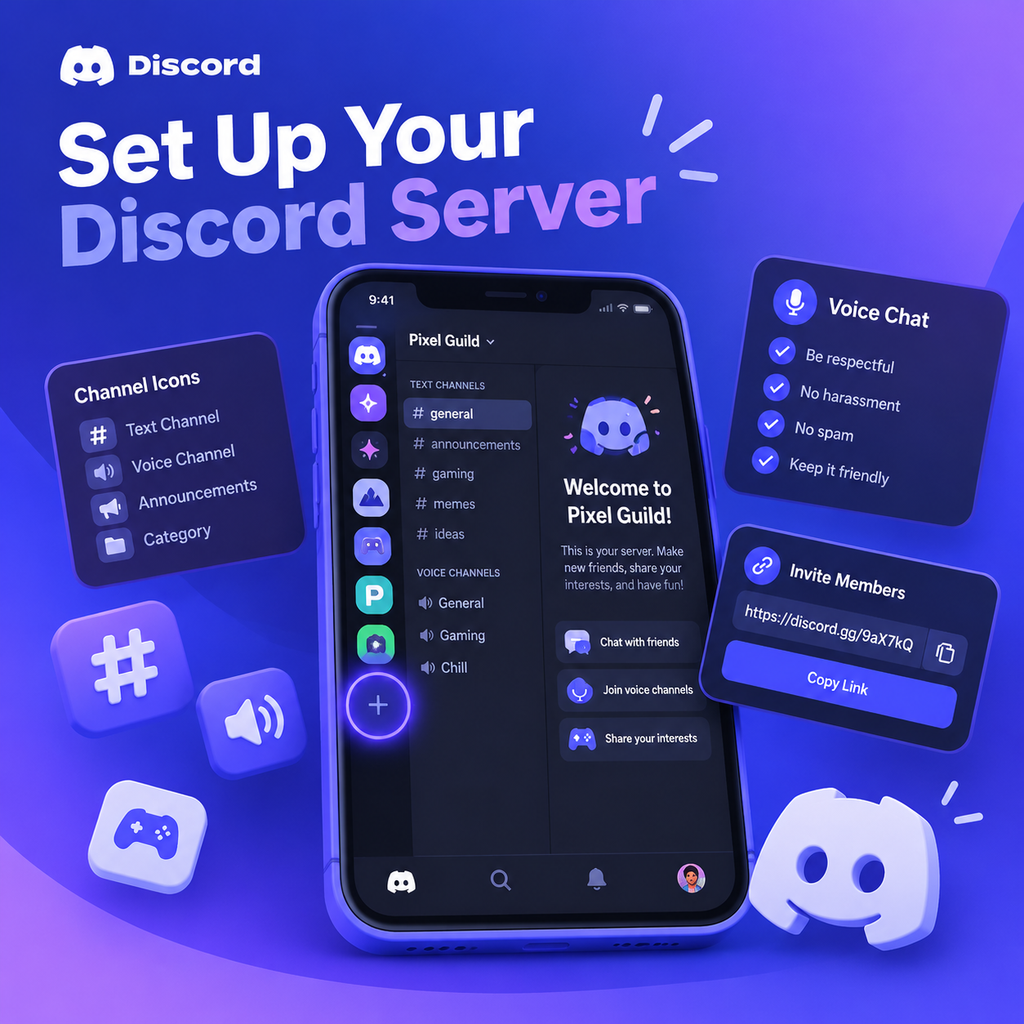
Getting Started: Creating Your Discord Server
So you've decided to build your own Discord server—great choice! Whether you're gathering a few friends for game nights or launching a full-fledged community, Discord offers a flexible platform that's surprisingly easy to set up. In this guide, we'll walk you through the entire process, from the first click to inviting your first members. Let's dive in.
Step-by-Step Server Creation
Creating a server takes just a couple of minutes. Here's how:
- Open the Discord app on your computer, browser, or mobile device.
- Click the + icon (Add a Server) in the left sidebar.
- Choose Create My Own if you want to start from scratch, or pick a template that matches your server's purpose.
- Decide whether your server is For me and my friends or For a club or community. This choice affects available features.
- Give your server a name and optionally upload an icon.
- Click Create—and voilà, your server is live!
Don't worry about getting everything perfect right away. You can always change the name and icon later.
Choosing Between Friend and Community Server
Discord offers two main server types: friend servers and community servers. Friend servers are ideal for small, private groups—think close friends or a gaming squad. They're invite-only and focus on casual communication. Community servers, on the other hand, are designed for larger audiences around a shared interest. They come with extra tools like Server Insights (analytics), Raid Protection (security), Rules and Onboarding (member screening), and a Welcome Screen. Community servers also have access to forum channels and stage channels. If you're planning to grow your server beyond a tight-knit group, enable the Community feature in your server settings. You can always start as a friend server and upgrade later.
Setting Up Channels: The Backbone of Organization
Channels keep conversations tidy. Discord offers three main types:
- Text channels: For messages, files, and ongoing discussions.
- Voice channels: For voice and video calls—great for gaming, meetings, or hanging out.
- Forum channels (Community servers only): For topic-based posts that don't get lost in a busy chat.
To create a channel, click the + next to a category or use the server menu and select Create Channel. Start with a few essential channels: a welcome/rules channel, a general chat, and maybe a voice lounge. As your server grows, you can add more and organize them into categories. Drag and drop to reorder, and use permissions to control who sees what.
Private Channels and Permissions
Need a space for moderators only? When creating a channel, toggle Private Channel and select the roles or members who should have access. This is perfect for sensitive discussions or admin work.
Roles and Permissions: The Cornerstone of Moderation
Roles define what members can do and how they appear. Set them up before inviting people so your server is organized from day one. To create roles, go to Server Settings > Roles. You'll see options to:
- Create new roles with custom permissions (e.g., Moderator, Member, Newcomer).
- Assign a color to each role for easy identification.
- Control who can manage channels, kick members, or mention everyone.
Use roles to delegate responsibilities. For example, give moderators the power to delete messages and mute others, while regular members have basic access. You can also create role-specific channels—like a private channel for your mod team. Remember, the key is to grant only the permissions each role needs.
Inviting Members: Growing Your Community
Once your channels and roles are set, it's time to invite others. You must be the server owner or have permission to create invites. Here's how:
- Click the Invite button (or the server name > Invite People).
- Choose to invite friends directly via DM or copy the invite link to share anywhere.
- Customize the link: set an expiration time or limit the number of uses.
- For permanent invites (use with caution), set to never expire.
You can also create invites for specific channels by right-clicking a channel and selecting Invite People. This is handy for directing new members to a particular discussion.
Setting Up Rules and Onboarding
If you're running a community server, a clear set of rules is essential. Create a #rules channel and write guidelines covering behavior, spam, and content. Discord's Rules Screening feature requires new members to agree to your rules before posting—turn it on in Community settings. Also, use the Welcome Screen to highlight important channels and give newcomers a quick tour. Onboarding lets you ask new members questions to assign roles automatically, making them feel welcomed and reducing manual work.
Moderation and Security: Keeping Your Server Safe
As your server grows, moderation becomes crucial. Discord provides several tools:
- Verification Levels: Require a verified phone or email before members can send messages.
- Raid Protection: Automatically detects and blocks spam attacks.
- AutoMod: Set up filters for inappropriate language and spam.
- Pruning: Remove inactive members to keep your member list fresh.
Assign moderator roles to trusted members and encourage them to enforce rules fairly. Consider adding bots like MEE6 or Dyno for advanced moderation and automation. And always keep your staff accounts secure with two-factor authentication.
Customizing Your Server for Success
With the basics in place, you can fine-tune your server. Add a server icon and banner that reflect your community's vibe. Organize channels into categories (e.g., "Information," "General," "Voice") and use drag-and-drop to reorder. Set up an announcements channel for important updates, and use polls or threads to keep conversations engaging. Integrate bots for music, games, or event planning. Finally, consider enabling Server Discovery if you want your community to be publicly listed. Remember, a well-organized server with a clear purpose attracts and retains members. Start small, iterate based on feedback, and watch your community thrive.