

 Русский
 Turkish
 Português (Brasil)
 한국어
한국어 العربية
 Español
 ไทย
ไทย Tiếng Việt
 Français
 中文
中文 Deutsch
 Bahasa Indonesia
 Italiano
 日本語
日本語 Polski
 Українська
 فارسی
فارسی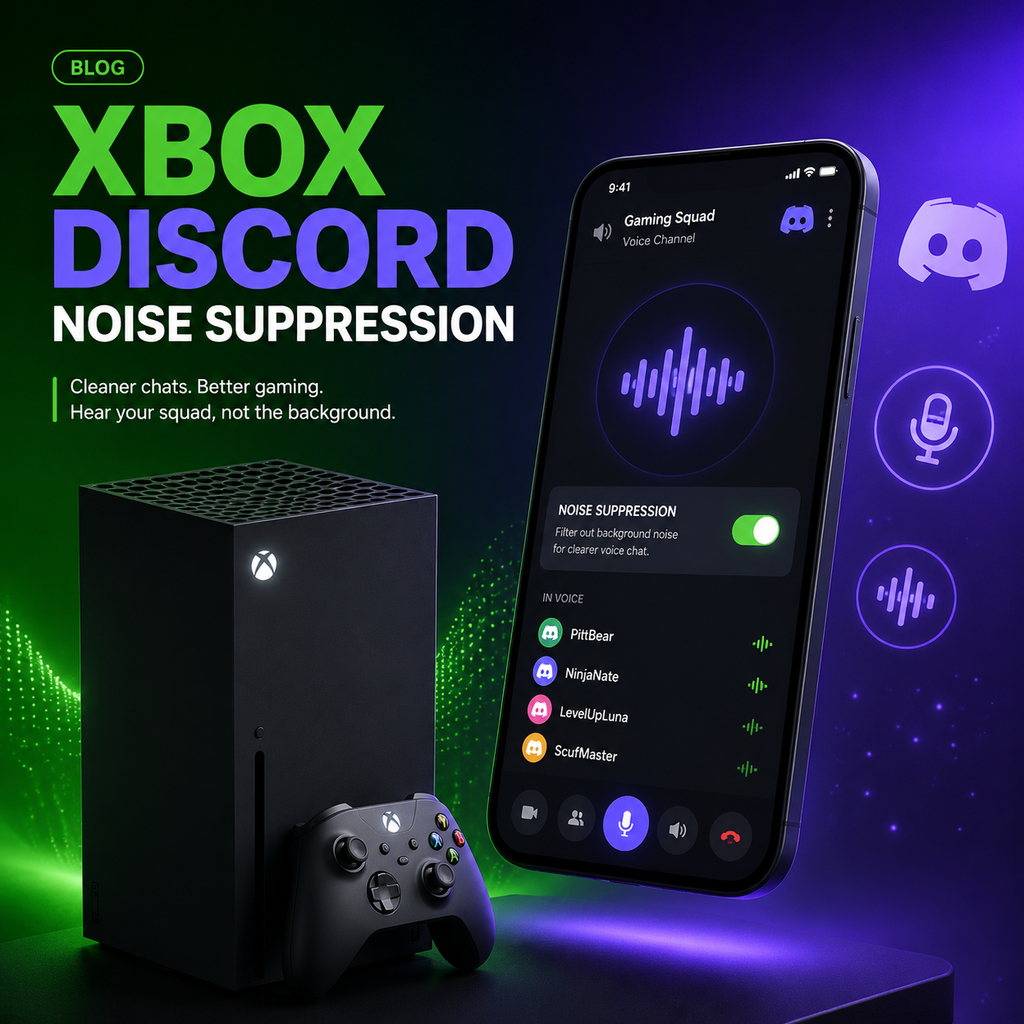
Discord Voice Chat Gets Noise Suppression on Xbox
Xbox's November update brings a highly requested feature to Discord voice chat on Xbox Series X/S: noise suppression. This feature, already available in Xbox party chat, now extends to Discord voice channels, allowing you to block out background noise like keyboard clicks, fans, or traffic while chatting with friends. Whether you're in a heated multiplayer session or a casual hangout, cleaner audio makes communication clearer and more enjoyable.
To enable noise suppression during a Discord voice chat, simply open the guide by pressing the Xbox button, navigate to Parties & Chats, select your Discord voice channel, then choose Options and toggle Noise Suppression on. It's that straightforward. The feature is designed to work with any microphone connected to your console, including headsets and built-in controllers.
How to Turn On Noise Suppression Step-by-Step
Getting started is easy. Once you've joined a Discord voice channel on your Xbox, follow these steps:
- Press the Xbox button to open the guide.
- Go to the Parties & Chats tab.
- Highlight your Discord voice channel and press A.
- Select Options from the menu.
- Toggle Noise Suppression to On.
That's all it takes. You'll instantly notice quieter backgrounds, letting your voice come through clearly. The setting persists for that session, but you can adjust it at any time. For best results, ensure your microphone is properly positioned and your privacy settings allow communication with everyone.
Adjusting Discord Audio Settings for Optimal Experience
While the console-side noise suppression is a game-changer, you can also tweak settings within the Discord app on mobile or PC before transferring a voice channel to your Xbox. Options like echo cancellation, automatic gain control, and additional noise suppression levels can be adjusted to fine-tune your audio. Changes made in the Discord app will carry over to your console experience, giving you granular control over how you sound to others.
If you're finding that noise suppression is too aggressive, consider lowering mic sensitivity or disabling it via the Discord app before connecting. Some users have reported that adjusting these settings helps ensure your voice is picked up clearly without needing to shout. Experiment to find what works best for your setup.
Troubleshooting Common Discord Voice Chat Issues
Occasionally, you might encounter issues like not being able to hear others or others not hearing you. Here are some quick fixes:
- Check that you're not on a Discord voice channel and an Xbox party chat simultaneously.
- Ensure the person you're chatting with hasn't been muted or blocked.
- Verify your privacy settings allow communication with everyone via Profile & system > Settings > Account > Online privacy and security.
- Adjust group chat volume for each participant by selecting their name and moving the volume slider.
- If noise suppression seems to cut off your voice, try disabling it in the Discord app before transferring to Xbox.
If problems persist, restart your console and file feedback using the Report a Problem feature to help Microsoft improve the experience.
Noise Suppression: A Feature Long Requested by the Community
The addition of noise suppression to Discord voice chats on Xbox addresses a major pain point for players who rely on Discord for cross-platform communication. Previously, background noise could be a distraction, especially in busy households or streaming setups. This update ensures that your voice remains the focus, whether you're coordinating strategies or catching up with friends.
Xbox continues to refine its integration with Discord, and this November update demonstrates a commitment to enhancing social features. As more players move from Xbox party chat to Discord, having parity in audio quality is crucial. With noise suppression now available, the gap between the two platforms narrows, offering a consistent, high-quality experience no matter where you chat.
Looking ahead, we can expect further refinements as feedback rolls in. The ability to toggle noise suppression directly in Discord's own settings before transferring voice channels suggests deeper integration is on the horizon. For now, enjoy clearer conversations and less background clutter with this simple but powerful update. Dive into your next gaming session knowing that every word you say will be heard loud and clear.