Find the right service
Compare platforms, rates, quantity limits and the conditions of each service.
Browse the catalogue →ABOUT IAMPROVIDER
IamProvider brings social media services, order tracking and support into one workspace for resellers.
Compare services, manage your orders and keep the details you need close at hand.

WHO WE ARE
Choose a service from the catalogue, review its requirements and place an order from your account. Each order has its own ID, status and history.
For repeat work, the panel provides bulk ordering and API access. For a question, support keeps your message and the relevant order details together.
 English
 Русский
 Turkish
 Português (Brasil)
 한국어
 العربية
 Español
 ไทย
 Tiếng Việt
 Français
 中文
 Deutsch
 Bahasa Indonesia
 Italiano
 日本語
 Polski
 Українська
 فارسی



HOW WE HELP
Compare platforms, rates, quantity limits and the conditions of each service.
Browse the catalogue →Follow order status and use the documented API to connect your own tools.
Explore the API →Include your service or order ID so support can review the relevant details.
Open a conversation →IamProvider is a panel for selecting and managing social media services. The current service description defines the target, quantity range and conditions of an order. A service name or displayed count does not establish audience interest, future sales or a platform recommendation.
Check the service ID and conditions again when reordering. Rates, availability and requirements can change between visits.
Use your account to keep the selected service, target, quantity and order status together. When contacting support about an order, include its ID and describe what you observed.
Free tools and manually reviewed free requests have their own requirements. They do not use the paid-order workflow interchangeably, and completing a free request does not place a paid order.
A LOOK INSIDE
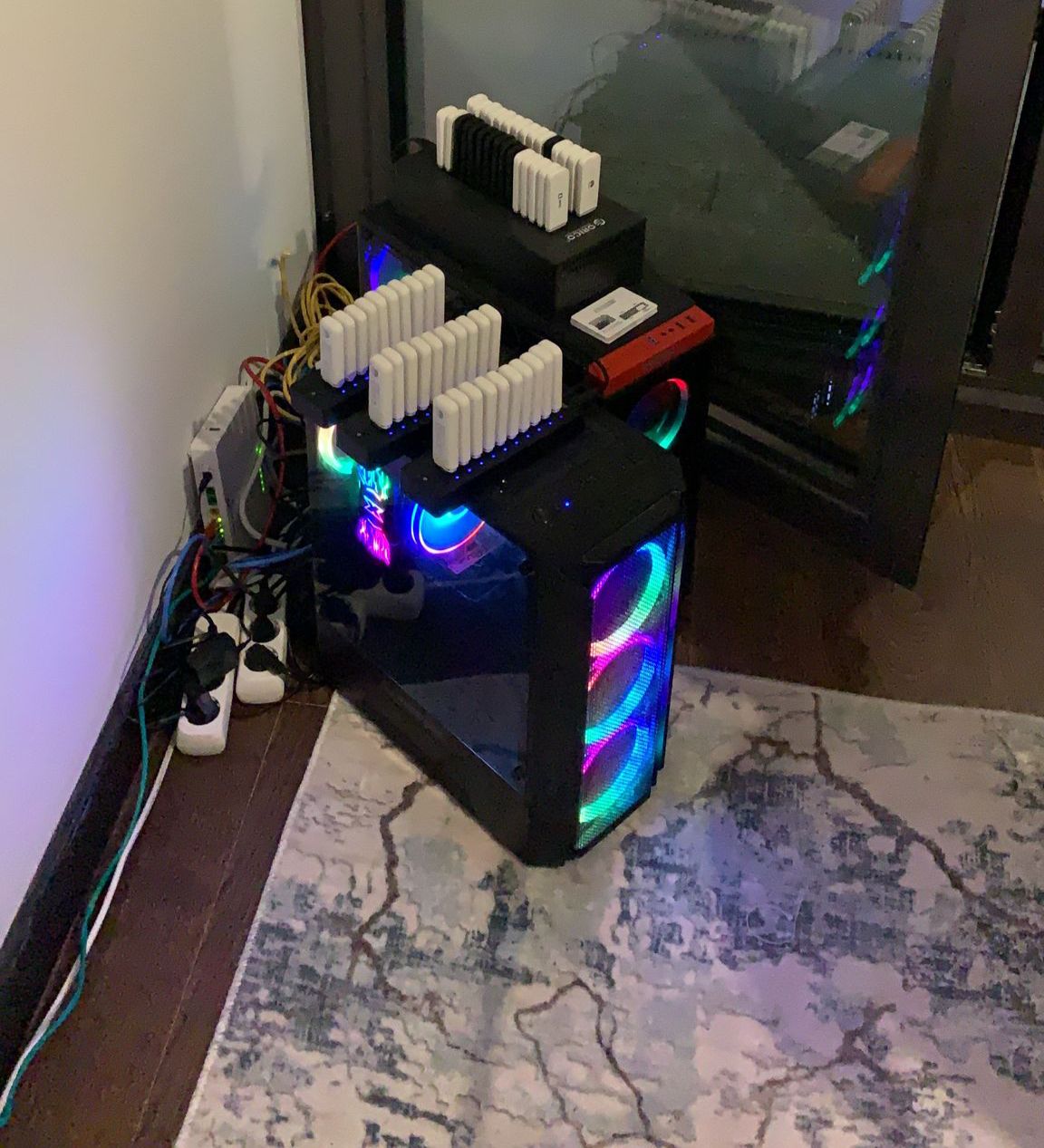
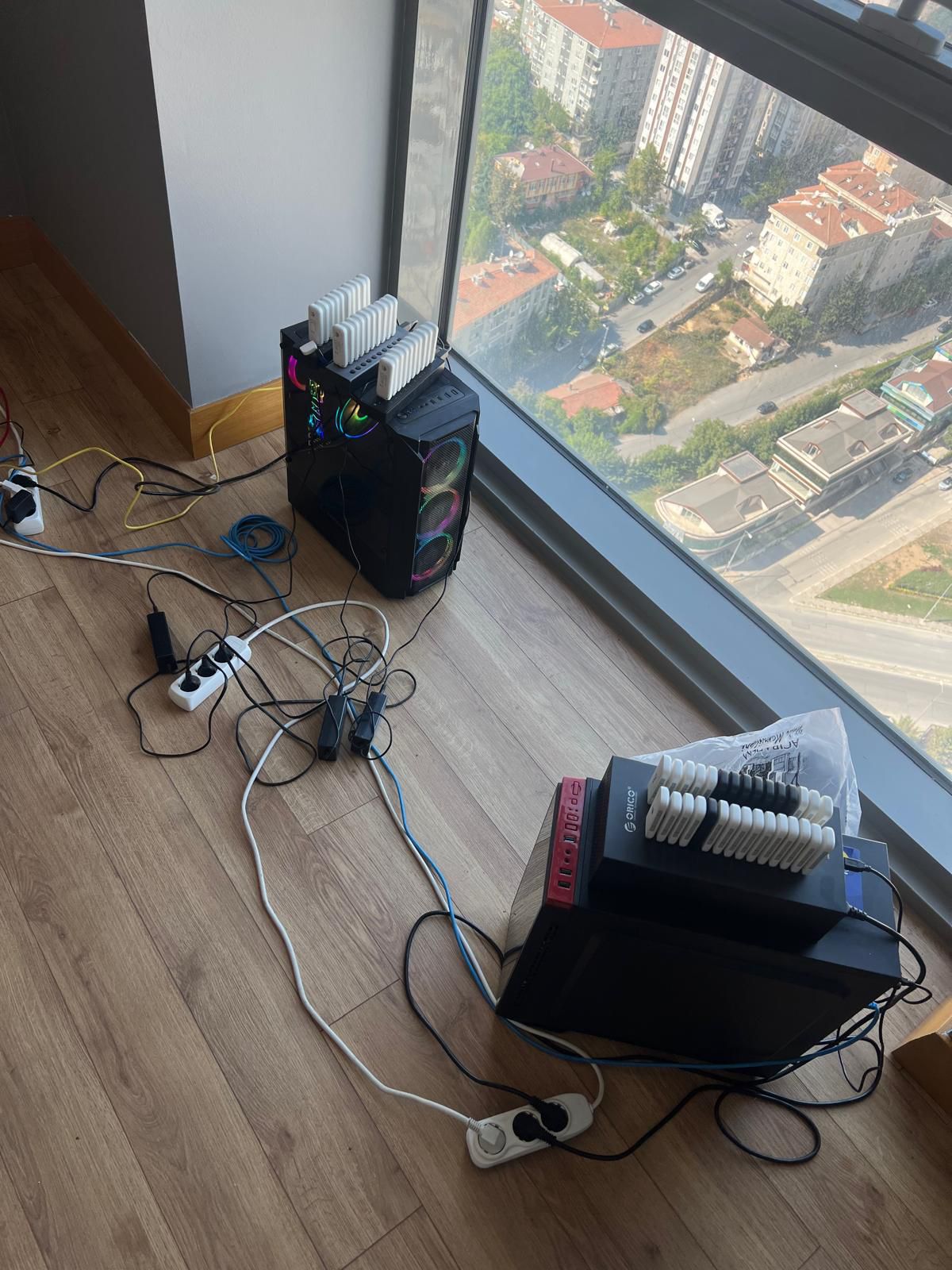
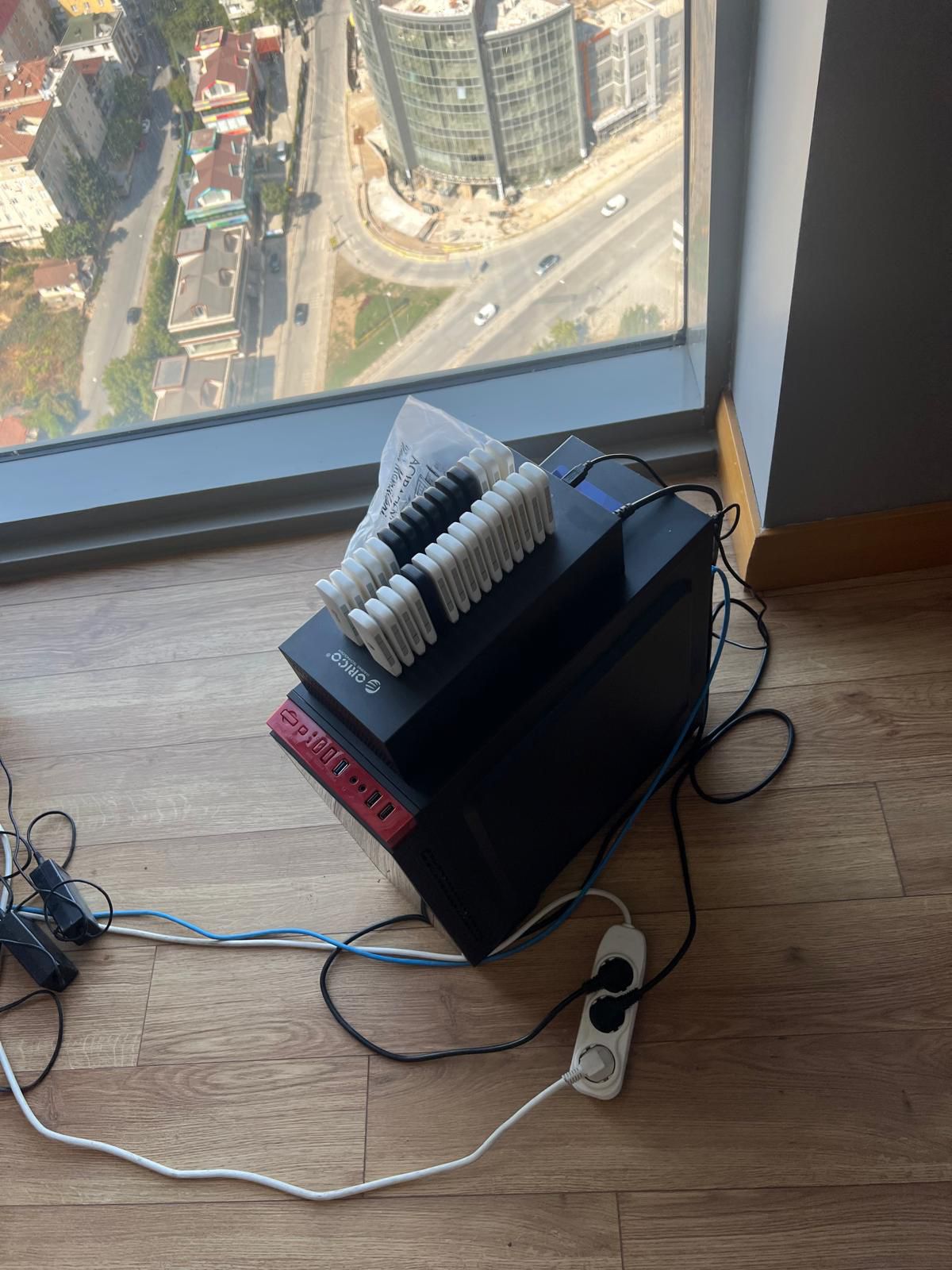
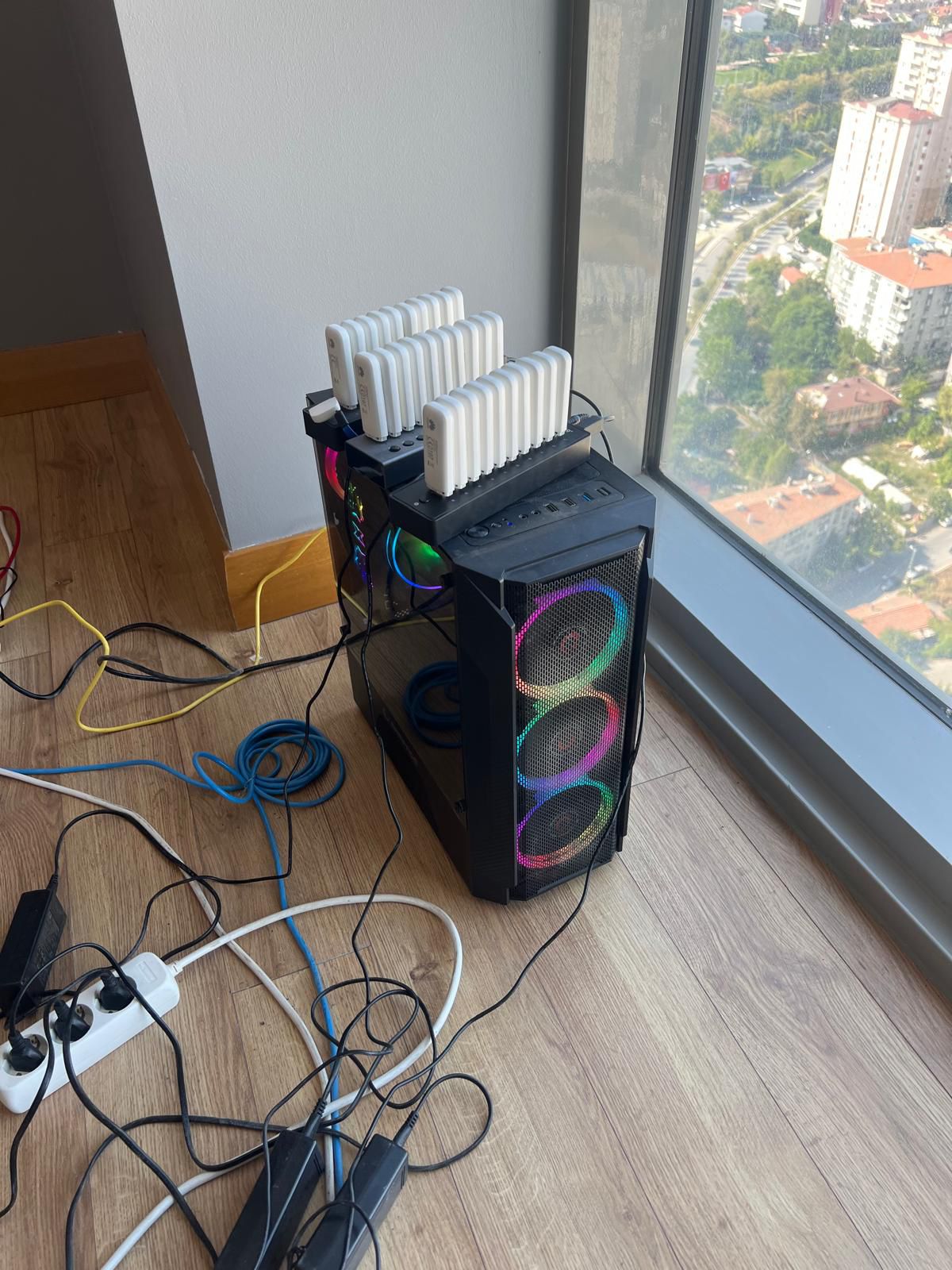
Four photographs shared by IamProvider. Select a photograph to view it at full size.
Check the catalogue for each service’s current availability and conditions.
View services →