

 English
 Русский
 Turkish
 Português (Brasil)
 한국어
한국어 العربية
 Español
 Tiếng Việt
 Français
 中文
中文 Deutsch
 Bahasa Indonesia
 Italiano
 日本語
日本語 Polski
 Українська
 فارسی
فارسی


เริ่มต้น: สร้างเซิร์ฟเวอร์ Discord ของคุณในไม่กี่นาที
เซิร์ฟเวอร์ Discord เป็นพื้นที่ที่สร้างขึ้นเองสำหรับเชื่อมต่อกับเพื่อน ครอบครัว หรือชุมชนทั้งหมดที่สร้างขึ้นจากความสนใจร่วมกัน ไม่ว่าคุณจะวางแผนจัดปาร์ตี้ส่วนตัวสำหรับทีมเกมของคุณหรือศูนย์กลางสาธารณะสำหรับกลุ่มเรียน การสร้างเซิร์ฟเวอร์นั้นรวดเร็วและตรงไปตรงมา ขั้นตอนทั้งหมดใช้เวลาเพียงไม่กี่นาที และคุณสามารถปรับเปลี่ยนรายละเอียดได้ในภายหลัง มาดูขั้นตอนสำคัญในการทำให้เซิร์ฟเวอร์ของคุณพร้อมใช้งานกัน
ขั้นตอนที่ 1: ตั้งค่ารากฐานเซิร์ฟเวอร์ของคุณ
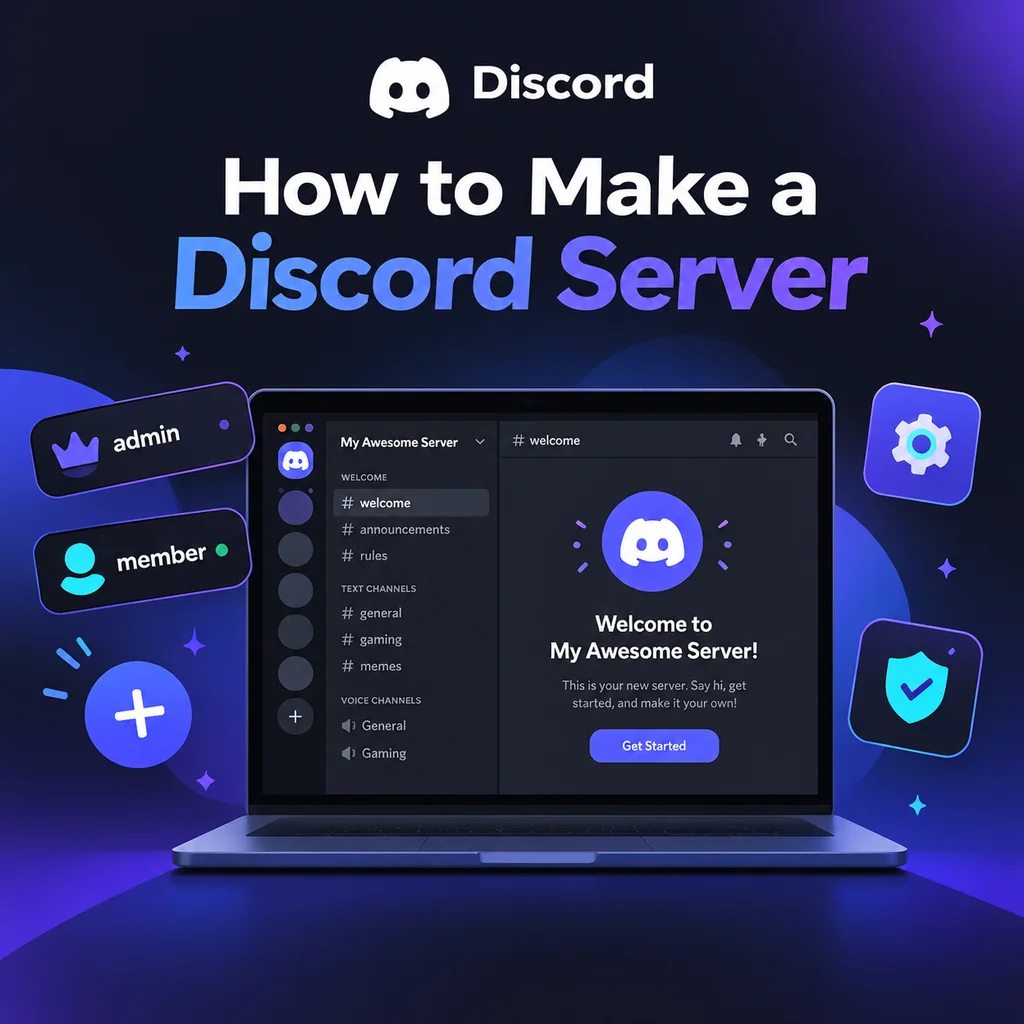
ก่อนอื่น ดาวน์โหลดแอป Discord หรือเปิดในเบราว์เซอร์ของคุณ เมื่อลงชื่อเข้าใช้แล้ว มองหาไอคอน เพิ่มเซิร์ฟเวอร์—สัญลักษณ์บวกที่มักอยู่ด้านล่างของรายการเซิร์ฟเวอร์ทางซ้าย คลิกที่มัน และคุณจะเห็นตัวเลือก: สร้างของฉันเอง หรือ เริ่มจากเทมเพลต สำหรับผู้ใช้ส่วนใหญ่ การสร้างเองจะให้การควบคุมเต็มที่ จากนั้นเลือกว่าเซิร์ฟเวอร์ของคุณเป็น สำหรับฉันและเพื่อน (ส่วนตัว) หรือ สำหรับคลับหรือชุมชน (สาธารณะ) ตัวเลือกนี้ส่งผลต่อสิทธิ์เริ่มต้นแต่สามารถปรับได้ในภายหลัง ตั้งชื่อเซิร์ฟเวอร์และอัปโหลดไอคอน (ไม่บังคับ) ไอคอนควรมีขนาดอย่างน้อย 128x128 พิกเซล แต่ภาพสี่เหลี่ยมขนาด 512x512 จะดีที่สุด สุดท้ายคลิก สร้าง และเซิร์ฟเวอร์ของคุณก็พร้อมใช้งานทันทีด้วยช่องเริ่มต้นเช่น #general และ General voice
เคล็ดลับ: อย่าคิดมากเรื่องชื่อและไอคอน
คุณสามารถเปลี่ยนทั้งสองอย่างได้ตลอดเวลาในการตั้งค่าเซิร์ฟเวอร์ ดังนั้นเลือกอะไรง่ายๆ แล้วเริ่มต้นเลย ความมหัศจรรย์ที่แท้จริงจะเกิดขึ้นเมื่อคุณปรับแต่ง
ขั้นตอนที่ 2: ออกแบบโครงสร้างช่องของคุณ
ช่องคือหัวใจของเซิร์ฟเวอร์ของคุณ—จัดระเบียบการสนทนาตามหัวข้อ เซิร์ฟเวอร์ใหม่มักมีช่องมากเกินไป ซึ่งทำให้พื้นที่ดูร้าง เริ่มจากชุดขั้นต่ำ: ช่องต้อนรับ (#rules, #announcements), แชททั่วไป (#general), ช่องสื่อ (#media) และห้องเสียงสองสามห้อง ใช้หมวดหมู่เพื่อจัดกลุ่มช่องที่เกี่ยวข้อง คลิกขวาที่รายการช่องเพื่อสร้างหมวดหมู่ จากนั้นลากช่องเข้าไป ตัวอย่างเช่น สร้างหมวดหมู่ 📢 ต้อนรับ ที่มี #rules และ #announcements หมวดหมู่ 💬 แชท ที่มี #general และ #media และหมวดหมู่ 🔊 เสียง ที่มี Lounge 1 และ Lounge 2 เมื่อชุมชนของคุณเติบโต คุณสามารถเพิ่มช่องตามความต้องการ
แนวทางปฏิบัติที่ดีที่สุดสำหรับการจัดระเบียบช่อง
- ทำให้ง่าย: ช่องน้อยลงหมายถึงการสนทนาที่มีสมาธิมากขึ้น
- ใช้หมวดหมู่: ป้องกันความยุ่งเหยิงและช่วยให้สมาชิกนำทางได้
- เพิ่มช่องทีละน้อย: สร้างช่องใหม่เฉพาะเมื่อช่องที่มีอยู่ยุ่งเกินไป
ขั้นตอนที่ 3: เชี่ยวชาญบทบาทและสิทธิ์
บทบาทกำหนดว่าสมาชิกสามารถเห็นและทำอะไรได้บ้าง ลำดับชั้นบทบาทของ Discord เป็นแบบบนลงล่าง: บทบาทที่สูงกว่าในรายการมีอำนาจมากกว่า ไปที่ การตั้งค่าเซิร์ฟเวอร์ → บทบาท เพื่อสร้างบทบาทเช่น @admin, @moderator, @member และ @unverified กำหนดสิทธิ์อย่างระมัดระวัง—ให้แต่ละบทบาทเฉพาะสิ่งที่จำเป็น ตัวอย่างเช่น @moderator อาจมีสิทธิ์เตะ แบน และจัดการข้อความ ในขณะที่ @member มีสิทธิ์พื้นฐาน ข้อผิดพลาดทั่วไปคือให้ Administrator กับทุกคน หลีกเลี่ยงเว้นแต่จำเป็นจริงๆ นอกจากนี้ จำไว้ว่าบอทต้องการบทบาทที่อยู่เหนือบทบาทที่พวกเขาจัดการ ขั้นตอนง่ายๆ นี้ป้องกันปัญหามากมายในภายหลัง
สิทธิ์เฉพาะช่อง
คุณสามารถแทนที่สิทธิ์บทบาทต่อช่องได้ ตัวอย่างเช่น ใน #announcements ตั้งค่า @everyone เป็นอ่านอย่างเดียว เพื่อให้เฉพาะทีมงานโพสต์ได้ คลิกขวาที่ช่อง เลือก แก้ไขช่อง → สิทธิ์ และปรับตามต้องการ นี่คือวิธีสร้างช่องทีมงานส่วนตัวหรือจำกัดการเข้าถึงบางพื้นที่
ขั้นตอนที่ 4: กำหนดการตั้งค่าเซิร์ฟเวอร์และความปลอดภัย
ก่อนเชิญใคร ไปที่ การตั้งค่าเซิร์ฟเวอร์ → ภาพรวม ตั้งระดับการยืนยันอย่างน้อยปานกลาง (ต้องมีอีเมลยืนยัน) เพื่อป้องปรามบอทและการจู่โจม ภายใต้ การตั้งค่าความปลอดภัย เปิดใช้ AutoMod และตั้งค่าตัวกรองสำหรับสแปมและเนื้อหาที่ไม่เหมาะสม นอกจากนี้ ตั้งการแจ้งเตือนเริ่มต้นเป็น เฉพาะ @mentions เพื่อไม่ให้สมาชิกถูกรบกวนด้วยการแจ้งเตือน การปรับเล็กๆ น้อยๆ เหล่านี้ช่วยรักษาชุมชนที่มีสุขภาพดีได้มาก
ขั้นตอนที่ 5: เพิ่มประสิทธิภาพด้วยบอทและข้อความต้อนรับ
บอทเพิ่มฟังก์ชันเช่นการกลั่นกรอง เพลง และเกม เชิญบอทที่จำเป็นสองสามตัว: บอทกลั่นกรอง (เช่น Dyno), บอทบทบาทจากรีแอคชัน (เช่น Carl-bot) และบอทต้อนรับ เมื่อเชิญ ให้สิทธิ์เฉพาะที่จำเป็น—อย่าให้ Administrator เว้นแต่คุณเชื่อถือบอทอย่างสมบูรณ์ หลังจากเพิ่มแล้ว ลากบทบาทของบอทให้อยู่เหนือบทบาทที่มันต้องจัดการ นอกจากนี้ เขียนข้อความต้อนรับและปักหมุดใน #rules เก็บกฎให้กระชับและชัดเจน ข้อความยาวเป็นกำแพงจะไม่ถูกอ่าน ชุดง่ายๆ เช่น "ให้เกียรติกัน ไม่สแปม อยู่ในหัวข้อ" ใช้ได้ดี
ทดสอบการตั้งค่าของคุณ
ก่อนแชร์เซิร์ฟเวอร์ ทดสอบด้วยบัญชีสำรอง เข้าร่วมเป็นสมาชิกใหม่และตรวจสอบว่าคุณเห็นช่องที่ถูกต้อง สิทธิ์ทำงานตามที่ตั้งใจ และบอททำงานถูกต้อง การแก้ไขปัญหาตอนนี้ง่ายกว่ามากเมื่อคุณมีสมาชิกเป็นร้อย
ขั้นตอนที่ 6: เชิญสมาชิกและขยายชุมชนของคุณ
เชิญเพื่อนผ่านปุ่ม เชิญผู้คน หรือสร้างลิงก์เชิญ สำหรับเซิร์ฟเวอร์ส่วนตัว ใช้คำเชิญแบบใช้ครั้งเดียวที่หมดอายุใน 24 ชั่วโมง สำหรับเซิร์ฟเวอร์สาธารณะ คุณสามารถสร้างคำเชิญถาวรได้ แชร์บนโซเชียลมีเดีย subreddit ที่เกี่ยวข้อง หรือไซต์รายชื่อเซิร์ฟเวอร์ Discord สมาชิกสองสามคนแรกสำคัญมาก—สร้างกิจกรรมโดยการแชทเป็นประจำและจัดอีเวนต์ พิจารณาเพิ่ม URL แบบกำหนดเองเมื่อเซิร์ฟเวอร์ของคุณถึง Boost Level 3 จำไว้ว่าเซิร์ฟเวอร์เติบโตได้ด้วยการมีส่วนร่วม: กำหนดคืนเกม ปาร์ตี้ดูหนัง หรือเซสชันเรียน เพื่อให้สมาชิกมีเหตุผลกลับมา
การสร้างเซิร์ฟเวอร์ Discord เป็นเพียงจุดเริ่มต้น ศิลปะที่แท้จริงอยู่ที่การดูแลพื้นที่ที่ผู้คนรู้สึกยินดีและตื่นเต้นที่จะมีส่วนร่วม ด้วยการเริ่มต้นง่ายๆ มุ่งเน้นความต้องการของชุมชน และปรับปรุงตามข้อเสนอแนะ คุณจะสร้างศูนย์กลางที่มีชีวิตชีวาที่ยืนหยัดผ่านกาลเวลา ดังนั้นไปข้างหน้า—กดปุ่มบวกนั้นและเริ่มต้นการเดินทางของคุณวันนี้!