跳到内容
Iamprovider
中文
EnglishРусскийTurkishPortuguês (Brasil)한국어العربيةEspañolไทยTiếng ViệtFrançais中文DeutschBahasa IndonesiaItaliano日本語PolskiУкраїнськаفارسی
返回

注释和指南

How to Make a Discord Server

How to Make a Discord Server

Getting Started: Create Your Discord Server in Minutes

Discord servers are custom-built spaces where you can connect with friends, family, or entire communities built around a shared interest. Whether you're planning a private hangout for your gaming squad or a public hub for your study group, creating a server is quick and straightforward. The entire process takes just a few minutes, and you can always tweak the details later. Let's walk through the essential steps to get your server up and running.

Step 1: Set Up Your Server Foundation

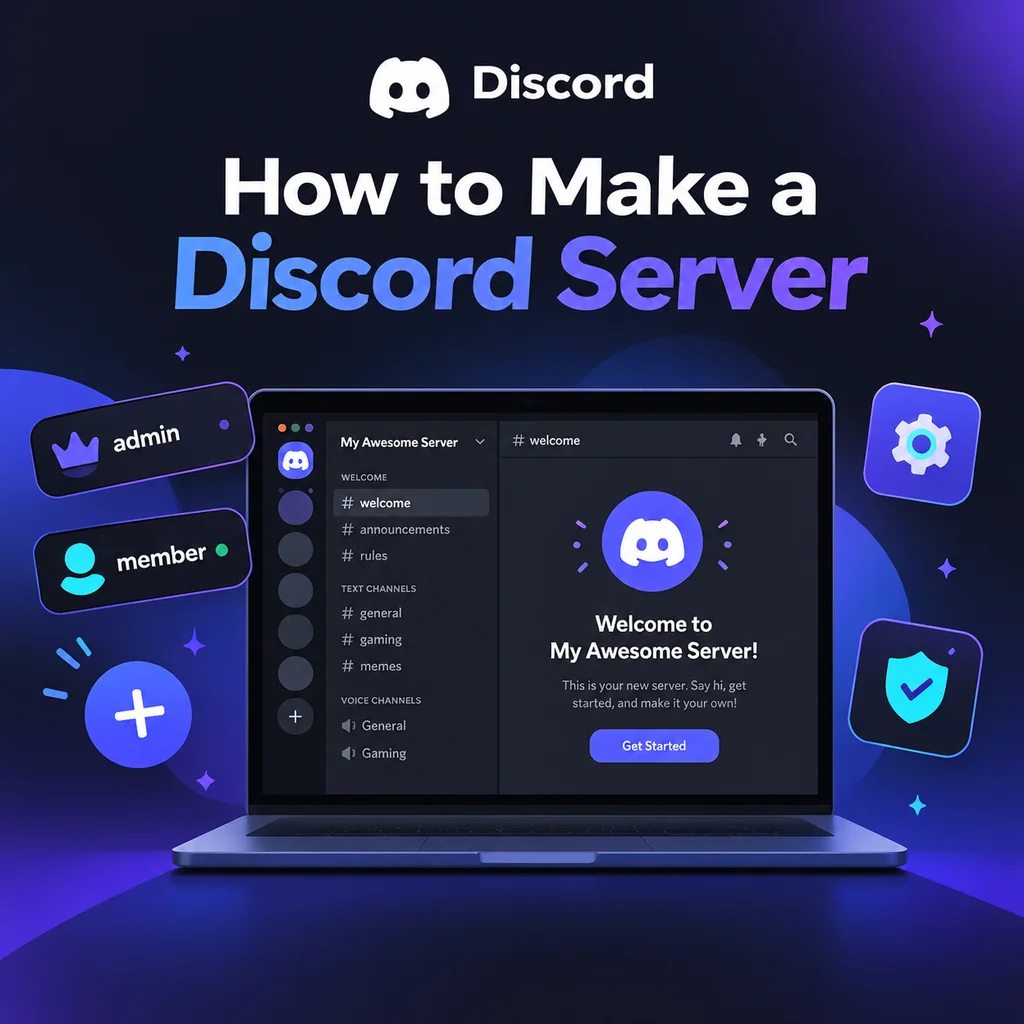
First, download the Discord app or open it in your browser. Once signed in, look for the Add a Server icon—a plus symbol typically found at the bottom of your server list on the left. Click it, and you'll be presented with options: Create My Own or Start from a Template. For most users, creating your own gives you full control. Next, choose whether your server is For me and my friends (private) or For a club or community (public). This choice affects default permissions but can be adjusted later. Then, name your server and optionally upload an icon. The icon should be at least 128x128 pixels, but a square image of 512x512 works best. Finally, click Create, and your server is live with default channels like #general and General voice.

Pro Tip: Don't Overthink the Name and Icon

You can change both at any time in Server Settings, so pick something simple and get started. The real magic happens as you customize.

Step 2: Design Your Channel Structure

Channels are the heart of your server—they organize conversations by topic. New servers often suffer from too many channels, which can make the space feel deserted. Start with a minimal set: a welcome channel (#rules, #announcements), a general chat (#general), a media channel (#media), and a couple of voice rooms. Use categories to group related channels; right-click the channel list to create a category, then drag channels into it. For example, create a 📢 Welcome category with #rules and #announcements, a 💬 Chat category with #general and #media, and a 🔊 Voice category with Lounge 1 and Lounge 2. As your community grows, you can add more channels based on demand.

Best Practices for Channel Organization

  • Keep it simple: Fewer channels mean more focused conversations.
  • Use categories: They prevent clutter and help members navigate.
  • Add channels gradually: Only create a new channel when an existing one gets too busy.

Step 3: Master Roles and Permissions

Roles define what members can see and do. Discord's role hierarchy is top-down: roles higher in the list have more power. Go to Server Settings → Roles to create roles like @admin, @moderator, @member, and @unverified. Assign permissions carefully—give each role only what it needs. For instance, @moderator might have kick, ban, and manage messages, while @member has basic access. A common pitfall is granting Administrator to everyone; avoid that unless absolutely necessary. Also, remember that bots need their roles positioned above the roles they manage. This simple step prevents many headaches later.

Channel-Specific Permissions

You can override role permissions per channel. For example, in #announcements, set @everyone to read-only, so only staff can post. Right-click a channel, select Edit Channel → Permissions, and adjust as needed. This is how you create private staff channels or restrict access to certain areas.

Step 4: Configure Server Settings and Safety

Before inviting anyone, head to Server Settings → Overview. Set the verification level to at least Medium (requires a verified email) to deter bots and raids. Under Safety Setup, enable AutoMod and set up filters for spam and explicit content. Also, set default notifications to Only @mentions so members aren't overwhelmed by pings. These small tweaks go a long way in maintaining a healthy community.

Step 5: Enhance with Bots and Welcome Messages

Bots add functionality like moderation, music, and games. Invite a few essential ones: a moderation bot (e.g., Dyno), a reaction-role bot (e.g., Carl-bot), and a welcome bot. When inviting, grant only necessary permissions—never give Administrator unless you trust the bot completely. After adding, drag the bot's role above the roles it needs to manage. Also, write a welcoming message and pin it in #rules. Keep rules concise and clear; a wall of text won't be read. A simple set like "Be respectful, no spam, stay on topic" works well.

Testing Your Setup

Before sharing your server, test it with an alt account. Join as a new member and check that you can see the right channels, that permissions work as intended, and that bots function correctly. Fixing issues now is much easier than after you have a hundred members.

Step 6: Invite Members and Grow Your Community

Invite friends via the Invite People button or by creating an invite link. For private servers, use single-use invites that expire in 24 hours. For public servers, you can create a permanent invite. Share it on social media, relevant subreddits, or Discord server listing sites. The first few members are crucial—seed activity by chatting regularly and hosting events. Consider adding a vanity URL once your server reaches Boost Level 3. Remember, a server thrives on engagement: schedule game nights, movie watch parties, or study sessions to give members a reason to return.

Creating a Discord server is just the beginning. The real art lies in nurturing a space where people feel welcome and excited to participate. By starting simple, focusing on your community's needs, and iterating based on feedback, you'll build a vibrant hub that stands the test of time. So go ahead—hit that plus button and start your journey today!

探索 I Am Provider

您的下一个服务从这里开始。

按平台浏览完整的服务库。

Instagram20
购买 Instagram粉丝购买 Instagram自动点赞购买 Instagram自动视频观看购买 Instagram评论购买 Instagram互动量购买 Instagram 展示量购买 Instagram点赞购买 Instagram直播观看量购买 Instagram 成员购买 Instagram提及购买 Instagram旧帖点赞购买 Instagram旧帖浏览量购买 Instagram 个人资料访问购买 Instagram 触达人数购买 Instagram收藏购买 Instagram分享购买 Instagram 动态点赞购买 Instagram 故事分享购买 Instagram 故事浏览购买 Instagram视频观看量
TikTok15
购买 TikTok评论购买 TikTok下载购买 TikTok粉丝购买 TikTok点赞购买 TikTok直播评论购买 TikTok直播点赞购买 TikTok直播分享购买 TikTok直播观看量购买 TikTokPK对战积分购买 TikTok收藏购买 TikTok分享购买 TikTok故事点赞购买 TikTok故事分享购买 TikTok故事浏览购买 TikTok视频观看量
YouTube9
购买 YouTube自动评论购买 YouTube自动点赞购买 YouTube自动视频观看量购买 YouTube评论点赞购买 YouTube评论购买 YouTube点赞购买 YouTube分享购买 YouTube订阅者购买 YouTube视频观看量
X (Twitter)14
购买 X (Twitter)书签购买 X (Twitter)评论购买 X (Twitter) 详情点击购买 X (Twitter)粉丝购买 X (Twitter) 曝光量购买 X (Twitter) 点赞购买 X (Twitter)链接点击量购买 X (Twitter)提及购买 X (Twitter) 投票购买 X (Twitter)帖子浏览量购买 X (Twitter) 个人资料点击量购买 X (Twitter)转发购买 X (Twitter)空间听众购买 X (Twitter)视频观看量
Facebook12
购买 脸书评论购买 脸书粉丝购买 Facebook 好友请求购买 Facebook 点赞购买 Facebook直播观看量购买 Facebook 页面关注购买 Facebook 主页点赞购买 脸书贴文点赞购买 Facebook 帖子反应购买 Facebook 个人资料关注购买 Facebook 故事浏览购买 Facebook视频观看量
Telegram3
购买 Telegram 成员购买 电报帖子浏览量购买 电报反应
Twitch6
购买 Twitch 频道观看次数购买 Twitch 剪辑观看次数购买 Twitch 粉丝购买 Twitch 直播观看次数购买 Twitch Prime會員购买 Twitch视频观看次数
Spotify4
购买 Spotify 粉丝购买 Spotify 听众购买 Spotify 播放次数购买 Spotify 保存
SoundCloud5
购买 SoundCloud 评论购买 SoundCloud 粉丝购买 SoundCloud 赞购买 SoundCloud 播放量购买 SoundCloud 转发
Threads5
购买 Threads 评论购买 Threads 关注者购买 Threads 点赞购买 Threads 转发购买 Threads 分享
Likee4
购买 Likee 评论购买 Likee 粉丝购买 Likee 点赞购买 Likee分享
Discord1
购买 Discord 成员
Reddit6
购买 Reddit 评论购买 Reddit 粉丝购买 Reddit帖子浏览量购买 Reddit分享购买 Reddit 订阅购买 Reddit 点赞数
Kick2
购买 Kick 粉丝购买 Kick 直播观看量
LinkedIn3
购买 LinkedIn 关注者购买 LinkedIn 点赞购买 领英视频观看次数
Pinterest5
购买 Pinterest 粉丝购买 Pinterest 点赞购买 Pinterest 转发购买 Pinterest 保存购买 Pinterest 分享
OnlyFans3
购买 OnlyFans评论购买 OnlyFans 粉丝购买 OnlyFans 点赞
Snapchat4
购买 Snapchat 互动购买 Snapchat 粉丝购买 Snapchat 聚光灯观看次数购买 Snapchat 故事浏览量
Kwai5
购买 快手评论购买 快手粉丝购买 Kwai 点赞购买 快手分享购买 快手视频下载
Tumblr3
购买 Tumblr 粉丝购买 Tumblr 喜欢购买 汤不热转发
Shopee1
购买 Shopee 直播观看次数
Trustpilot1
购买 Trustpilot 评论
Quora5
购买 Quora回答浏览量购买 Quora 关注者购买 Quora 分享购买 Quora 点赞数购买 Quora浏览量
Yandex Zen5
购买 Yandex Zen 评论购买 Yandex Zen 点赞数购买 Yandex Zen 阅读购买 Yandex Zen 订阅购买 Yandex Zen视频观看次数
WhatsApp2
购买 WhatsApp 频道成员购买 WhatsApp 频道帖子反应
Vimeo2
购买 Vimeo 关注者购买 Vimeo 赞
更多服务1
购买 Yandex 音乐播放

下一篇文章的工具

准备文本、规划内容并制定下一个活动。

探索免费工具

免费服务申请

活动开始时,请求最多 100 个单位进行手动审核。不保证批准和交付。

Browse all free service requests

Instagram

TikTok

Facebook

YouTube

X (Twitter)

Spotify

Telegram

Twitch

Brawl Stars

PUBG Mobile

这里提供帮助

联系我们

选择如何联系我们的团队。

查找下一页

Tab 选择 · Enter 打开 · Esc 关闭